スライダーでデータバインディングのサンプルプログラムを作りました。
今回は、同じスライダーで、値の変更に同期しコマンドの実行の可否を変更するプログラムになります。

ソースコード
ファイル名:SliderDemo2.csproj
<Project Sdk="Microsoft.NET.Sdk">

  <PropertyGroup>
    <OutputType>WinExe</OutputType>
    <TargetFramework>net10.0-windows</TargetFramework>
    <Nullable>enable</Nullable>
    <ImplicitUsings>enable</ImplicitUsings>
    <UseWPF>true</UseWPF>
  </PropertyGroup>

</Project>
ファイル名:AppCommands.cs
using System.Windows;
using System.Windows.Input;

static  partial class AppCommands
{
    public static void Bind(
        Window w,
        ICommand cmd,
        ExecutedRoutedEventHandler exec,
        CanExecuteRoutedEventHandler? can = null)
    {
        w.CommandBindings.Add(
            new CommandBinding(
                cmd,
                exec,
                can ?? ((_, e) => e.CanExecute = true)
            ));
    }


}
前回と同じ。
ということは他のアプリでも使い回せるということですね。
ファイル名:MainWindow.xaml.cs
using System.Windows;
using System.Windows.Input;

namespace SliderDemo2;

static  partial class AppCommands
{
    // アプリ専用コマンド
    public static readonly RoutedUICommand Reset =
        new RoutedUICommand(
            "Reset",
            "Reset",
            typeof(AppCommands));
}

public partial class MainWindow : Window
{
    MainWindowViewModel VM => (MainWindowViewModel)DataContext;

    public MainWindow()
    {
        InitializeComponent();

        DataContext = new MainWindowViewModel
        {
            SliderValue = 50
        };

        // Reset コマンド登録
        CommandBindings.Add(
            new CommandBinding(
                AppCommands.Reset,
                Reset_Executed,
                Reset_CanExecute));
    }

    void Reset_Executed(object sender, ExecutedRoutedEventArgs e)
    {
        VM.SliderValue = 0;
    }

    void Reset_CanExecute(object sender, CanExecuteRoutedEventArgs e)
    {
        e.CanExecute = VM.SliderValue != 0;
    }
}
リセットコマンドはAppCommands.Resetに紐づいています。
そして、AppCommands.Resetは、SliderValueが0以外の場合、有効となります。
結果、スライダーの値が0以外の場合リセットボタンが押せる状態を作れます。
ファイル名:MainWindowViewModel.cs
using System.ComponentModel;
using System.Runtime.CompilerServices;

namespace SliderDemo2;

public class MainWindowViewModel : INotifyPropertyChanged
{
    public event PropertyChangedEventHandler? PropertyChanged;

    void Raise([CallerMemberName] string? name = null)
        => PropertyChanged?.Invoke(this, new PropertyChangedEventArgs(name));

    int _sliderValue;
    public int SliderValue
    {
        get => _sliderValue;
        set
        {
            if (_sliderValue == value) return;
            _sliderValue = value;
            Raise();
        }
    }

    public int SliderMin { get; set; } = 0;
    public int SliderMax { get; set; } = 200;
    public bool IsSliderEnabled { get; set; } = true;
}
MaxやMinはOneWayなので、単純なプロパティとして定義してあります。
ファイル名:MainWindow.xaml
<Window x:Class="SliderDemo2.MainWindow"
        xmlns="http://schemas.microsoft.com/winfx/2006/xaml/presentation"
        xmlns:x="http://schemas.microsoft.com/winfx/2006/xaml"
        xmlns:local="clr-namespace:SliderDemo2"
        Title="Slider Demo"
        Height="260"
        Width="500">

    <Grid Margin="20">
        <Grid.RowDefinitions>
            <RowDefinition Height="Auto"/>
            <RowDefinition Height="Auto"/>
            <RowDefinition Height="Auto"/>
        </Grid.RowDefinitions>

        <TextBlock FontSize="28"
                   HorizontalAlignment="Center"
                   Text="{Binding SliderValue,
                                  StringFormat=現在値: {0:F0}}"/>

        <Slider Grid.Row="1"
                Height="30"
                Minimum="{Binding SliderMin}"
                Maximum="{Binding SliderMax}"
                Value="{Binding SliderValue,
                                Mode=TwoWay,
                                UpdateSourceTrigger=PropertyChanged}"
                IsEnabled="{Binding IsSliderEnabled}" />

        <Button Grid.Row="2"
                Margin="0,16,0,0"
                Padding="6"
                FontSize="16"
                Command="{x:Static local:AppCommands.Reset}"
                Content="リセット"/>
    </Grid>
</Window>
リセットボタンを新設し、ボタンを押して実行するコマンドは、
AppCommands.Resetにバインディングしています。
実行例
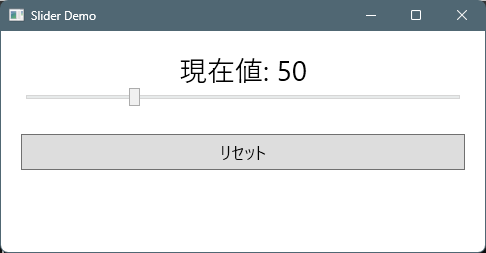
- 起動時はリセットボタンが押せる。
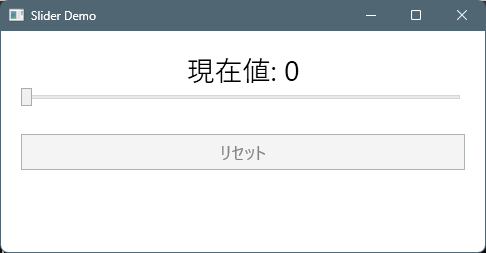
- スライダーを0にセットするとボタンが押せない状態になる。
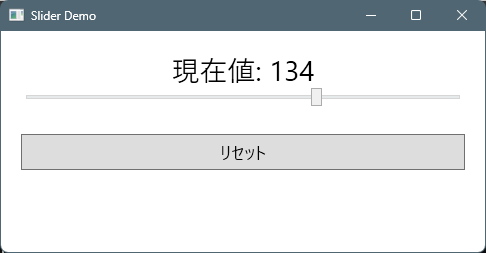
- スライダーを0以外にするとボタンが押せる状態に成る。

コメント