F2キーで名前を編集出来る様になりましたので、
他のアプリでも再利用できるようにユーザーコントロール化してみました。
ソースコード
ファイル名:0Lib.csproj
<Project Sdk="Microsoft.NET.Sdk">

  <PropertyGroup>
    <OutputType>WinExe</OutputType>
    <TargetFramework>net10.0-windows</TargetFramework>
    <RootNamespace>_0Lib</RootNamespace>
    <Nullable>enable</Nullable>
    <ImplicitUsings>enable</ImplicitUsings>
    <UseWPF>true</UseWPF>
  </PropertyGroup>

</Project>
ファイル名:Controls\IRenameTextEditable.cs
// 変更機能付きTextBlock

namespace Maywork.WPF.Controls;

public interface IRenameTextTarget
{
    string Name { get; set; }
    bool IsEditing { get; set; }
}

/*
    変更できる項目はNameのみ
*/
ファイル名:Controls\RenameText.xaml
<UserControl x:Class="Maywork.WPF.Controls.RenameText"
             xmlns="http://schemas.microsoft.com/winfx/2006/xaml/presentation"
             xmlns:x="http://schemas.microsoft.com/winfx/2006/xaml"
             xmlns:converter="clr-namespace:Maywork.WPF.Converters">
<!-- // 変更機能付きTextBlock -->
    <UserControl.Resources>
        <converter:BoolToVisibilityConverter x:Key="BoolToVis"/>
        <converter:InverseBoolToVisibilityConverter x:Key="InvBoolToVis"/>
    </UserControl.Resources>
    <!-- 自分自身を参照 -->
    <Grid>
        <TextBlock
            Text="{Binding Target.Name, RelativeSource={RelativeSource AncestorType=UserControl}}"
            Visibility="{Binding Target.IsEditing,
                                 RelativeSource={RelativeSource AncestorType=UserControl},
                                 Converter={StaticResource InvBoolToVis}}" />

        <TextBox
            Text="{Binding Target.Name,
                           RelativeSource={RelativeSource AncestorType=UserControl},
                           UpdateSourceTrigger=PropertyChanged}"
            Visibility="{Binding Target.IsEditing,
                                 RelativeSource={RelativeSource AncestorType=UserControl},
                                 Converter={StaticResource BoolToVis}}"
            IsVisibleChanged="TextBox_IsVisibleChanged"
            KeyDown="TextBox_KeyDown"
            LostFocus="TextBox_LostFocus"/>
    </Grid>
</UserControl>
ファイル名:Controls\RenameText.xaml.cs
// 変更機能付きTextBlock
using System.Windows.Controls;
using System.Windows;
using System.Windows.Input;

namespace Maywork.WPF.Controls;
public partial class RenameText : UserControl
{
    public RenameText()
    {
        InitializeComponent();
    }

    public IRenameTextTarget? Target
    {
        get => (IRenameTextTarget?)GetValue(TargetProperty);
        set => SetValue(TargetProperty, value);
    }

    public static readonly DependencyProperty TargetProperty =
        DependencyProperty.Register(
            nameof(Target),
            typeof(IRenameTextTarget),
            typeof(RenameText),
            new PropertyMetadata(null)
        );

    void TextBox_IsVisibleChanged(object sender, DependencyPropertyChangedEventArgs e)
    {
        if (sender is not TextBox tb) return;
        if (tb.IsVisible)
        {
            tb.Dispatcher.BeginInvoke(new Action(() =>
            {
                tb.Focus();
                tb.SelectAll();
            }), System.Windows.Threading.DispatcherPriority.Input);
        }
    }

    private void TextBox_KeyDown(object sender, KeyEventArgs e)
    {
        if (Target == null) return;

        if (e.Key == Key.Enter || e.Key == Key.Escape)
        {
            Target.IsEditing = false;
            e.Handled = true;
        }
    }

    private void TextBox_LostFocus(object sender, RoutedEventArgs e)
    {
        if (Target != null)
            Target.IsEditing = false;
    }
}
ファイル名:Controls\RenameTextHelper.cs
// 変更機能付きTextBlock
using System.Windows.Controls;
using System.Windows.Input;

namespace Maywork.WPF.Controls;

public static class RenameTextHelper
{
    public static void Attach<T>(ListView listView)
        where T : class, IRenameTextTarget
    {
        listView.KeyDown += (s, e) =>
        {
            if (e.Key != Key.F2)
                return;

            if (listView.SelectedItem is not T target)
                return;

            // 他を解除
            foreach (var item in listView.Items.OfType<T>())
                item.IsEditing = false;

            target.IsEditing = true;
            e.Handled = true;
        };
    }
}
/*

使い方:

コードビハイド

RenameTextHelper.Attach<FileItem>(リストビューの名前)
※FileItemはIRenameTextEditableの実装クラス


*/
ファイル名:Converters\BoolToVisibilityConverter.cs
// bool <=> Visibility.Visible/Collapsed
using System.Globalization;
using System.Windows.Data;
using System.Windows;

namespace Maywork.WPF.Converters;

public class BoolToVisibilityConverter : IValueConverter
{
    public object Convert(object value, Type targetType, object parameter, CultureInfo culture)
        => value is bool b && b ? Visibility.Visible : Visibility.Collapsed;

    public object ConvertBack(object value, Type targetType, object parameter, CultureInfo culture)
        => value is Visibility v && v == Visibility.Visible;
}
/*
使い方:

XAML内
<Window
    ...
    xmlns:converter="clr-namespace:Maywork.WPF.Converters">

<Window.Resources>
    <converter:BoolToVisibilityConverter x:Key="BoolToVis"/>

<TextBox
    ...
    Visibility="{Binding バインド名,
                Converter={StaticResource BoolToVis}}"
*/
ファイル名:Converters\IInverseBoolToVisibilityConverter.cs
// bool <=> Visibility インターフェイス
using System.Globalization;
using System.Windows.Data;
using System.Windows;

namespace Maywork.WPF.Converters;
public interface IInverseBoolToVisibilityConverter
{
    object Convert(object value, Type targetType, object parameter, CultureInfo culture);
    object ConvertBack(object value, Type targetType, object parameter, CultureInfo culture);
}
ファイル名:Converters\InverseBoolToVisibilityConverter.cs
// bool <=> Visibility.Collapsed/Visible
using System.Globalization;
using System.Windows.Data;
using System.Windows;

namespace Maywork.WPF.Converters;

public class InverseBoolToVisibilityConverter : IValueConverter, IInverseBoolToVisibilityConverter
{
    public object Convert(object value, Type targetType, object parameter, CultureInfo culture)
        => value is bool b && b ? Visibility.Collapsed : Visibility.Visible;

    public object ConvertBack(object value, Type targetType, object parameter, CultureInfo culture)
        => value is Visibility v && v != Visibility.Visible;
}
/*
使い方:

XAML内
<Window
    ...
    xmlns:local="clr-namespace:Maywork.WPF.Converters">

<Window.Resources>
    <local:BoolToVisibilityConverter x:Key="BoolToVis"/>

<TextBox
    ...
    Visibility="{Binding バインド名,
                Converter={StaticResource BoolToVis}}"

*/
ファイル名:Helpers\ViewModelBase.cs
// 汎用的な ViewModel 基底クラス実装。
using System.ComponentModel;
using System.Runtime.CompilerServices;

namespace Maywork.WPF.Helpers;

public abstract class ViewModelBase : INotifyPropertyChanged
{
    public event PropertyChangedEventHandler? PropertyChanged;

    protected void OnPropertyChanged([CallerMemberName] string? name = null)
        => PropertyChanged?.Invoke(this, new PropertyChangedEventArgs(name));
}

/*
使い方:

public class PersonItem : ViewModelBase
{
    private string _name = "";

    public string Name
    {
        get => _name;
        set
        {
            if (_name == value) return;
            _name = value;
            OnPropertyChanged();
        }
    }
...
*/
ファイル名:MainWindow.xaml
<Window x:Class="_0Lib.MainWindow"
        xmlns="http://schemas.microsoft.com/winfx/2006/xaml/presentation"
        xmlns:x="http://schemas.microsoft.com/winfx/2006/xaml"
        xmlns:d="http://schemas.microsoft.com/expression/blend/2008"
        xmlns:mc="http://schemas.openxmlformats.org/markup-compatibility/2006"
        xmlns:local="clr-namespace:_0Lib"
        xmlns:control="clr-namespace:Maywork.WPF.Controls"
        mc:Ignorable="d"
        Title="MainWindow" Height="450" Width="800">
    <Grid>
        <ListView x:Name="FileListView"
                  ItemsSource="{Binding Items}"
                  SelectedItem="{Binding SelectedItem, Mode=TwoWay}">
            <ListView.View>
                <GridView>
                    <GridViewColumn Header="Name" Width="200">
                        <GridViewColumn.CellTemplate>
                            <DataTemplate>
                                <control:RenameText Target="{Binding}" />
                            </DataTemplate>
                        </GridViewColumn.CellTemplate>
                    </GridViewColumn>
                </GridView>
            </ListView.View>
        </ListView>
    </Grid>
</Window>
ファイル名:MainWindow.xaml.cs
using System.Collections.ObjectModel;
using System.ComponentModel;
using System.Diagnostics;
using System.IO;
using System.Runtime.CompilerServices;
using System.Windows;
using System.Windows.Controls;
using System.Windows.Input;
using System.Windows.Threading;

using Maywork.WPF.Controls;
using Maywork.WPF.Helpers;

namespace _0Lib;

public partial class MainWindow : Window, INotifyPropertyChanged
{
    // ファイルの一覧、ListViewのItemSource
    public ObservableCollection<FileItem> Items {get; set;} = [];
    // 選択中のItem、バインド元
    FileItem? _selectedItem;
    public FileItem? SelectedItem
    {
        get => _selectedItem;
        set
        {
            if (_selectedItem != value)
            {
                _selectedItem = value;
                OnPropertyChanged();
            }
        }
    }
    // コンストラクタ
    public MainWindow()
    {
        InitializeComponent();

        DataContext = this;

        RenameTextHelper.Attach<FileItem>(FileListView);

        this.Loaded += MainWindow_Loaded;
    }

    // ファイルの一覧取得(検証用)
    void MainWindow_Loaded(object? sender, RoutedEventArgs e)
    {
        Items.Clear();

        string path = @"C:\Users\karet\Pictures";

        var dir = new DirectoryInfo(path);

        // フォルダ
        foreach (var d in dir.GetDirectories())
        {
            Items.Add(new FileItem
            {
                Name = d.Name,
                IsFolder = true,
                Size = 0,
                Modified = d.LastWriteTime
            });
        }

        // ファイル
        foreach (var f in dir.GetFiles())
        {
            Items.Add(new FileItem
            {
                Name = f.Name,
                IsFolder = false,
                Size = f.Length,
                Modified = f.LastWriteTime
            });
        }

    }

    public event PropertyChangedEventHandler? PropertyChanged;

    protected void OnPropertyChanged([CallerMemberName] string? name = null)
        => PropertyChanged?.Invoke(this, new PropertyChangedEventArgs(name));
}
ファイル名:FileItem.cs
using System.ComponentModel;
using System.Runtime.CompilerServices;

using Maywork.WPF.Controls;
using Maywork.WPF.Helpers;

namespace _0Lib;

public class FileItem : ViewModelBase, IRenameTextTarget
{
    string _name = "";
    string _originalName = "";
    bool _isEditing;

    public string Name
    {
        get => _name;
        set { _name = value; OnPropertyChanged(); }
    }

    public bool IsEditing
    {
        get => _isEditing;
        set
        {
            if (_isEditing == value) return;

            _isEditing = value;

            // 編集開始時に元の名前を保存
            if (_isEditing)
                _originalName = _name;

            OnPropertyChanged();
        }
    }
    public string OriginalName => _originalName;

    public bool IsFolder { get; set; }

    // 並び替え用
    public long Size { get; set; }
    public DateTime Modified { get; set; }

}
使い方
使う側のコードは
FileItem.cs
MainWindow.xaml.cs
MainWindow.xaml
で、
それ以外の.cs及び.xamlはライブラリで他のアプリで再利用できるはず。
FileItemは、IRenameTextTargetの実装を行う必要があります。
変更可能な項目名はNameに固定です。
XAML部分でUserControlを使っている
<DataTemplate>
    <control:RenameText Target="{Binding}" />
</DataTemplate>
Binding名が無いが、これはUserControlでも親コントロールのデータソースを
そのままバインドソースとして使うという意味になります。
ここでは FileItem インスタンスそのものがRenameText.Target に渡されます。
コードビハイドではコンストラクタで、以下のコードを実行している。
RenameTextHelper.Attach<FileItem>(FileListView);こちらはListView上でF2キーが押された際、TextBlockから編集可能なTextBoxに切り替えを行っている。
(実際はTextBoxとTextBlockの表示非表示フラグの切り替え)
他のイベント系はUserControl内で処理されます。
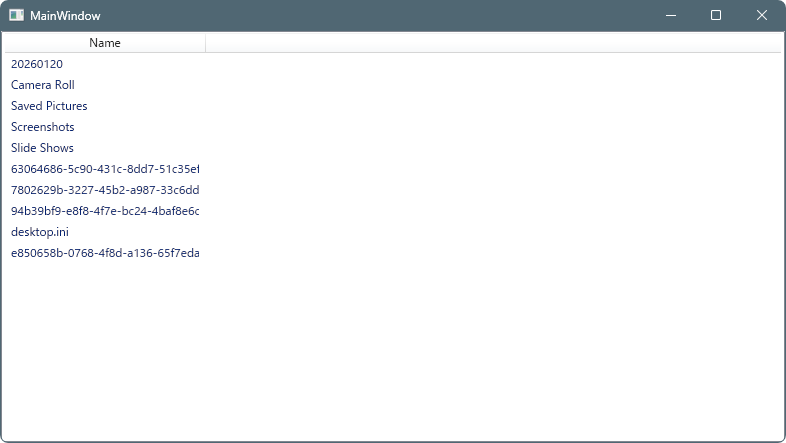
実行例
起動後
ファイルを選択→F2キーを押す
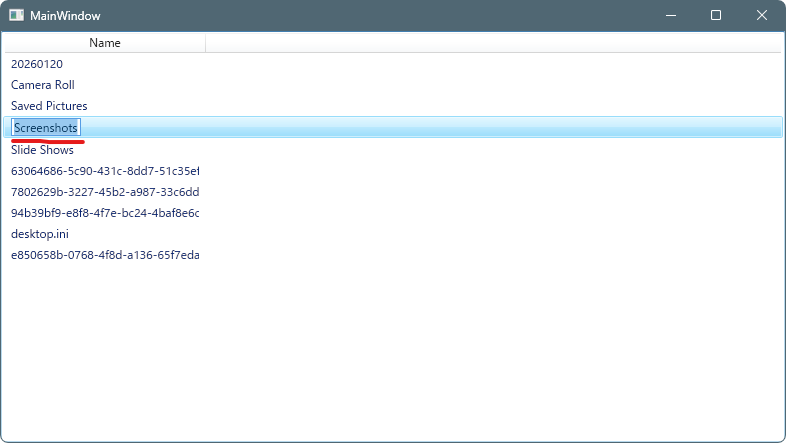
内容を編集し→エンターキー又はEscキー
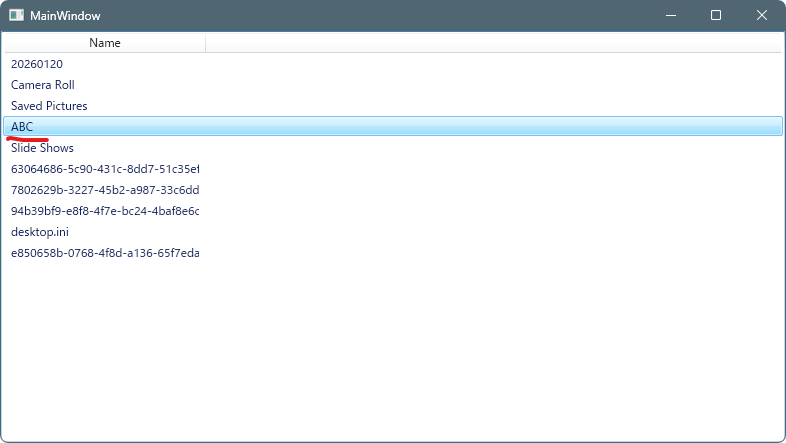
内容が変更されたことが確認出来た。
コメント