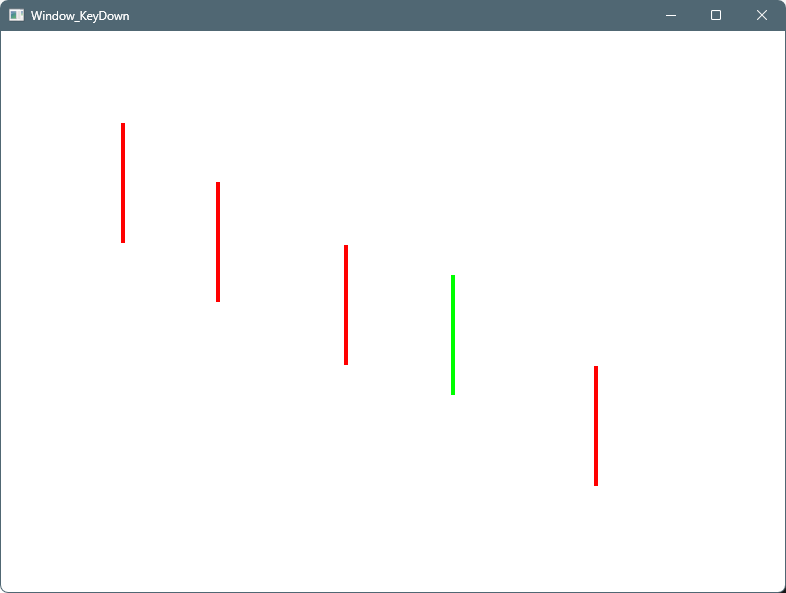
Canvas上でマウスをクリックすると縦の線(120px)が赤色で描画されます。
描画済みの線をクリックすると線の色が緑色に変化します。
緑色の選択状態でキーボードのDeleteキーを押すと、線が削除されます。
MainWindow.xaml
<Window x:Class="PathSample.MainWindow"
        xmlns="http://schemas.microsoft.com/winfx/2006/xaml/presentation"
        xmlns:x="http://schemas.microsoft.com/winfx/2006/xaml"
        Title="Window_KeyDown" Height="600" Width="800"
        KeyDown="Window_KeyDown">

    <Canvas x:Name="RootCanvas"
            Background="White"
            MouseLeftButtonDown="Canvas_MouseLeftButtonDown"/>

</Window>
using System.Windows;
using System.Windows.Input;
using System.Windows.Media;
using System.Windows.Shapes;

namespace PathSample;

public partial class MainWindow : Window
{
    Path? _selectedPath;

    const double LineLength = 120; // 縦線の固定長

    public MainWindow()
    {
        InitializeComponent();
    }

    /* ============================
     * Canvasクリック → 縦線を描く
     * ============================ */
    private void Canvas_MouseLeftButtonDown(object sender, MouseButtonEventArgs e)
    {
        // 既にPathをクリックした場合は新規描画しない
        if (e.Source is Path)
            return;

        Point p = e.GetPosition(RootCanvas);

        var geometry = new LineGeometry(
            new Point(p.X, p.Y - LineLength / 2),
            new Point(p.X, p.Y + LineLength / 2));

        var path = new Path
        {
            Data = geometry,
            Stroke = Brushes.Red,
            StrokeThickness = 4,
            Cursor = Cursors.Hand
        };

        path.MouseLeftButtonDown += Path_MouseLeftButtonDown;

        RootCanvas.Children.Add(path);
    }

    /* ============================
     * Pathクリック → 選択
     * ============================ */
    private void Path_MouseLeftButtonDown(object sender, MouseButtonEventArgs e)
    {
        if (sender is not Path path)
            return;

        // 前の選択を戻す
        if (_selectedPath != null)
            _selectedPath.Stroke = Brushes.Red;

        _selectedPath = path;
        _selectedPath.Stroke = Brushes.Lime;

        e.Handled = true; // Canvasへ伝播させない
    }

    /* ============================
     * Deleteキー → 削除
     * ============================ */
    private void Window_KeyDown(object sender, KeyEventArgs e)
    {
        if (e.Key != Key.Delete)
            return;

        if (_selectedPath != null)
        {
            RootCanvas.Children.Remove(_selectedPath);
            _selectedPath = null;
        }
    }
}
実行例

コメント