以前AttachedProperyをデータバインディングする記事を書きました。
![]()
WPFのAttachedPropertyでコマンドをバインディングするサンプルプログラム
やっていることは、クリックしたマウスの座標をMessageBoxで表示するだけです。コードビハインドでは、XAML側でCanvasにx:Nameを付けて、Clickイベントに対応するメソッドを記述するだけなので、ほんの数行のコードで済みます...
maywork.net
2026.03.04
そちらの記事の使い方が定番だと思いますが、今回はコードビハインドから使う方法を確認してみます。
CanvasClick.cs
using System.Windows;
using System.Windows.Controls;
using System.Windows.Input;

namespace AttachidPropertyCodeBehind;

public static class CanvasClick
{
    // Commandという名前のDPを生やす
    public static readonly DependencyProperty CommandProperty =
        DependencyProperty.RegisterAttached(
            "Command",  // 名前
            typeof(ICommand),   // バインド元の型 ... 今回はコマンド
            typeof(CanvasClick),    // 所有するクラス。
            new PropertyMetadata(null, OnCommandChanged));  // バインド時呼び出す

    // コードビハインド用Setter
    public static void SetCommand(DependencyObject element, ICommand value)
        => element.SetValue(CommandProperty, value);

    // コードビハインド用Getter
    public static ICommand GetCommand(DependencyObject element)
        => (ICommand)element.GetValue(CommandProperty);

    // バインド時の処理
    private static void OnCommandChanged(DependencyObject d, DependencyPropertyChangedEventArgs e)
    {
        // キャンバスで無ければ返る
        if (d is not Canvas canvas)
            return;

        // OldValueがある場合はイベント解除
        if (e.OldValue != null)
            canvas.MouseLeftButtonDown -= Canvas_MouseLeftButtonDown;

        // NewValueがある場合はイベントの登録
        if (e.NewValue != null)
            canvas.MouseLeftButtonDown += Canvas_MouseLeftButtonDown;
    }

    // マウスのクリックイベント(イベントドリブン)
    private static void Canvas_MouseLeftButtonDown(object sender, MouseButtonEventArgs e)
    {
        // キャンバスで無い場合返る。
        if (sender is not Canvas canvas)
            return;

        // コマンドが取得できなければ返る。
        var command = GetCommand(canvas);
        if (command == null)
            return;

        // クリック座標取得
        Point pos = e.GetPosition(canvas);

        // コマンドが実行可能なら実行する。
        if (command.CanExecute(pos))
        {
            // 引数にクリック座標を渡す。
            command.Execute(pos);
        }
    }
}
前回の記事と同じ
RelayCommand.cs
using System.Windows.Input;

namespace AttachidPropertyCodeBehind;

public class RelayCommand<T> : ICommand
{
    private readonly Action<T?> execute;

    public RelayCommand(Action<T?> execute)
    {
        this.execute = execute;
    }

    public bool CanExecute(object? parameter) => true;

    public void Execute(object? parameter)
        => execute((T?)parameter);

    public event EventHandler? CanExecuteChanged;
    public void RaiseCanExecuteChanged()
        => CanExecuteChanged?.Invoke(this, EventArgs.Empty);
}
ICommandの簡易実装ヘルパー
MainWindow.xaml
<Window x:Class="AttachidPropertyCodeBehind.MainWindow"
        xmlns="http://schemas.microsoft.com/winfx/2006/xaml/presentation"
        xmlns:x="http://schemas.microsoft.com/winfx/2006/xaml"
        xmlns:d="http://schemas.microsoft.com/expression/blend/2008"
        xmlns:mc="http://schemas.openxmlformats.org/markup-compatibility/2006"
        xmlns:local="clr-namespace:AttachidPropertyCodeBehind"
        mc:Ignorable="d"
        Title="MainWindow" Height="150" Width="200">
    <Grid>
        <Canvas x:Name="MyCanvas"
            Background="LightGray" />
    </Grid>
</Window>
MainWindow.xaml.cs
using System.Windows;
using System.Windows.Input;

namespace AttachidPropertyCodeBehind;

public partial class MainWindow : Window
{
    public MainWindow()
    {
        InitializeComponent();

        ICommand cmd = new RelayCommand<Point>(p =>
        {
            MessageBox.Show($"Click : {p.X:F0}, {p.Y:F0}");
        });

        CanvasClick.SetCommand(MyCanvas, cmd);
    }
}
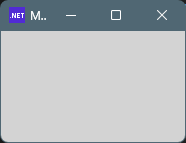
実行し、灰色のキャンバスをクリック
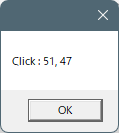
座標がメッセージボックスで表示されます。
コードビハインドで実装しましたが、AttachedPropertyは前回と同じCanvasClick.csを使うことが出来ました。
AttachedPropertyは内部的にはDependencyPropertyとして実装されているため、
通常のプロパティと同じようにSetValue(SetCommandの内部)で設定することが出来ます。
AttachedPropertyは、データバインドだけでなくコードビハインドからも扱うことが出来ます。
そのため、
・XAML(宣言)
・コードビハインド(命令)
どちらのスタイルでも利用可能な柔軟な仕組みです。
ライブラリとして定義しておくことで、用途に応じて使い分けが出来る点も大きなメリットです。
コメント