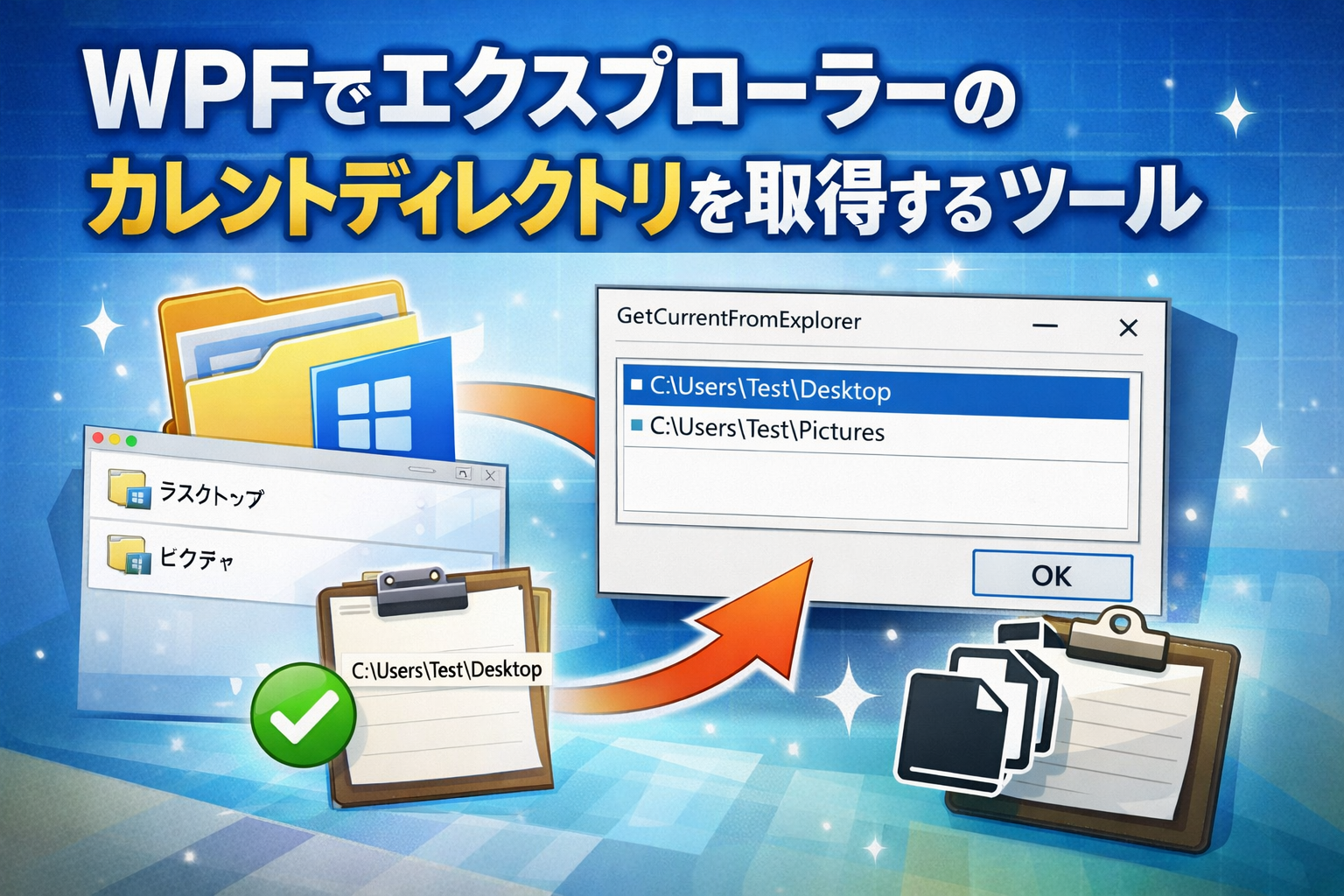
エクスプローラーで開いているディレクトリのパスを、
ほかのアプリケーションでファイルを開く際のパスとして使いたい、という場面があります。
プロセス間通信などの高度な仕組みを使わなくても、
ディレクトリのパスをクリップボードにテキストとして渡すだけで、多くの場合は十分です。
本記事では、
WPFでエクスプローラーの「現在開いているディレクトリ」を取得し、クリップボードへコピーする小さなツールを作成します。
アプリケーション側で
「ファイルを開く」「保存する」ダイアログを表示した際に、
そのまま貼り付けて使うことを想定しています。
ソースコード
GetCurrentFromExplorer.csproj
<Project Sdk="Microsoft.NET.Sdk">

  <PropertyGroup>
    <OutputType>WinExe</OutputType>
    <TargetFramework>net8.0-windows</TargetFramework>
    <Nullable>enable</Nullable>
    <ImplicitUsings>enable</ImplicitUsings>
    <UseWPF>true</UseWPF>
  </PropertyGroup>

</Project>
MainWindow.xaml
<Window x:Class="GetCurrentFromExplorer.MainWindow"
        xmlns="http://schemas.microsoft.com/winfx/2006/xaml/presentation"
        xmlns:x="http://schemas.microsoft.com/winfx/2006/xaml"
        xmlns:d="http://schemas.microsoft.com/expression/blend/2008"
        xmlns:mc="http://schemas.openxmlformats.org/markup-compatibility/2006"
        xmlns:local="clr-namespace:GetCurrentFromExplorer"
        mc:Ignorable="d"
        FontSize="14"
        Title="GetCurrentFromExplorer"
        Height="300"
        Width="500">
    <Grid>
        <DockPanel>
            <StackPanel
                DockPanel.Dock="Right"
                Orientation="Horizontal">
                <Button
                    Content="取得"
                    Margin="4"
                    Padding="4"
                    Height="40"
                    Click="Get_Button_Click">
                </Button>
                <Button
                    Content="コピー"
                    Margin="4"
                    Padding="4"
                    Height="40"
                    Click="Copy_Button_Click">
                </Button>
            </StackPanel>
            <Border
                BorderBrush="Gray"
                BorderThickness="1"
                Margin="4"
                Padding="4"
                Height="40">
                <TextBlock
                    x:Name="CurrentDir_TextBlock">
                </TextBlock>
            </Border>
        </DockPanel>
    </Grid>
</Window>
MainWindow.xaml.cs
using System.Diagnostics;
using System.Windows;
using System.Runtime.InteropServices;


namespace GetCurrentFromExplorer;

public partial class MainWindow : Window
{
    public static List<string> GetExplorerCurrentDirectories()
    {
        List<string> dirs= new();

        Type? instanceType = Type.GetTypeFromProgID("Shell.Application");
        if (instanceType is null) return dirs;

        dynamic? shell = Activator.CreateInstance(instanceType);
        if (shell is null) return dirs;

        dynamic windows = shell.Windows();

        for (int i = 0; i < windows.Count; i++)
        {
            dynamic? w = null;
            try
            {
                w = windows.Item(i);
                if (w.Name == "エクスプローラー" || w.Name == "Explorer")
                {
                    string path = w.Document.Folder.Self.Path;
                    if (string.IsNullOrEmpty(path)) continue;

                    dirs.Add(path);
                }
            }
            catch
            {
                // 例外は無視
            }
            finally
            {
                if (w is not null)
                    Marshal.ReleaseComObject(w);
            }
        }

        return dirs;
    }

    // コンストラクタ
    public MainWindow()
    {
        InitializeComponent();
    }
    // 取得ボタンクリック
    void Get_Button_Click(object sender, RoutedEventArgs e)
    {
        // エクスプローラーからカレントディレクトリを取得
        List<string> dirs = GetExplorerCurrentDirectories();
        if (dirs.Count == 0) return;

        string? selectedDir = null;

        if (dirs.Count == 1)
        {
            selectedDir = dirs[0];
        }
        else
        {
            var selectWindow = new SelectPathWindow(dirs)
            {
                Owner = this
            };

            if (selectWindow.ShowDialog() == true)
            {
                selectedDir = selectWindow.SelectedPath;
            }
        }

        if (string.IsNullOrEmpty(selectedDir)) return;

        // テキストブロックへセット
        CurrentDir_TextBlock.Text = selectedDir;

        // クリップボードへセット
        Clipboard.SetText(selectedDir);
    }
    // コピーボタンクリック
    void Copy_Button_Click(object sender, RoutedEventArgs e)
    {
        // テキストブロックからパスを取得
        string path = CurrentDir_TextBlock.Text;

        // クリップボードへセット
        Clipboard.SetText(path);
    }

}
SelectPathWindow.xaml
<Window x:Class="GetCurrentFromExplorer.SelectPathWindow"
        xmlns="http://schemas.microsoft.com/winfx/2006/xaml/presentation"
        xmlns:x="http://schemas.microsoft.com/winfx/2006/xaml"
        Title="Select Explorer Path"
        Width="500"
        Height="300"
        WindowStartupLocation="CenterOwner">

    <DockPanel Margin="8">
        <Button
            DockPanel.Dock="Bottom"
            Content="OK"
            Margin="0,8,0,0"
            Height="28"
            Click="Ok_Click" />

        <ListBox
            x:Name="PathListBox"
            MouseDoubleClick="PathListBox_MouseDoubleClick"/>
    </DockPanel>
</Window>
SelectPathWindow.xaml.cs
using System.Windows;

namespace GetCurrentFromExplorer;

public partial class SelectPathWindow : Window
{
    public string? SelectedPath { get; private set; }

    public SelectPathWindow(IEnumerable<string> paths)
    {
        InitializeComponent();
        PathListBox.ItemsSource = paths;

        // 一件目が選択
        Loaded += (_, __) =>
        {
            PathListBox.SelectedIndex = 0;
            PathListBox.Focus();
        };
    }

    void Ok_Click(object sender, RoutedEventArgs e)
    {
        CommitSelection();
    }

    void PathListBox_MouseDoubleClick(object sender, System.Windows.Input.MouseButtonEventArgs e)
    {
        CommitSelection();
    }

    void CommitSelection()
    {
        if (PathListBox.SelectedItem is string path)
        {
            SelectedPath = path;
            DialogResult = true; // ShowDialog() を抜ける
        }
    }
}
実行例
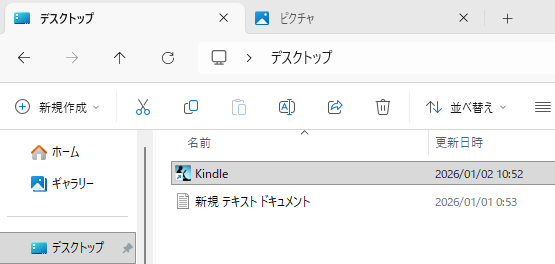
- エクスプローラーは「デスクトップ」と「ピクチャ」の二つのタブが開かれている。
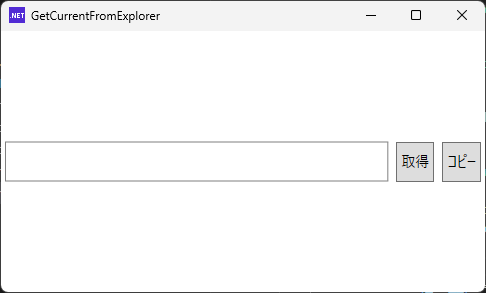
- 「取得」ボタンを押す
- パスの選択ウィンドウが表示される。→パスを選択
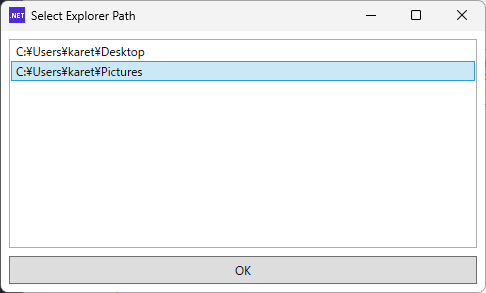
- 元ウィンドウのテキストブロックにパスが表示される→パスがクリップボードに保存される
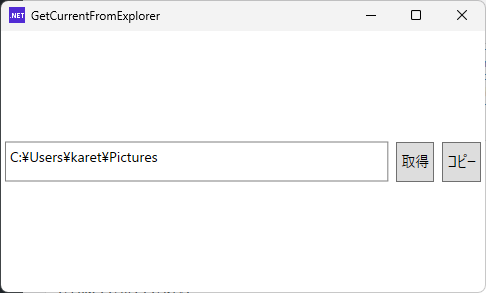
「コピー」ボタンは、
すでに取得済みのパスを 再度クリップボードへコピーしたい場合に使用します。
さいごに
本記事のツールは Windows 11 環境で動作確認していますが、
内部的には COM を利用しているため、動作速度や安定性については
正直なところ今一つと感じる場面もあります。


コメント