ウィンドウを作るだけのプログラム
何も出来ない真っ白なウィンドウを作るだけのプログラム。
ファイル名:MainWindow.cs
using System.Windows;

class MainWindow
{
    [STAThread]
    static void Main()
    {
        var app = new Application();
        app.Run(new Window());
    }
}
プロジェクト
ファイル名:01PlainWin.csproj
<Project Sdk="Microsoft.NET.Sdk">

  <PropertyGroup>
    <OutputType>WinExe</OutputType>
    <TargetFramework>net10.0-windows</TargetFramework>
    <RootNamespace>_01PlainWin</RootNamespace>
    <Nullable>enable</Nullable>
    <ImplicitUsings>enable</ImplicitUsings>
    <UseWPF>true</UseWPF>
  </PropertyGroup>

</Project>
ウィンドウサイズの指定とタイトルをセット
ファイル名:MainWindow.cs
using System.Windows;

class MainWindow
{
    [STAThread]
    static void Main()
    {
        var win = new Window
        {
            Title = "Hello",
            Width = 300,
            Height = 200,
        };
        var app = new Application();
        app.Run(win);
    }
}
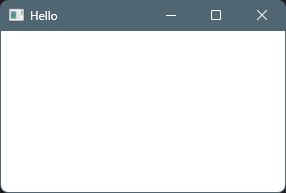
実行例
ボタンを配置しメッセージボックスを表示
ファイル名:MainWindow.cs
using System.Windows;
using System.Windows.Controls;

class MainWindow
{
    [STAThread]
    static void Main()
    {
        var button = new Button
        {
            Content = "押す",
            Width = 100,
            Height = 60,
        };
        button.Click += (_, __) =>
        {
            MessageBox.Show("Hello WPF!");
        };

        var win = new Window
        {
            Title = "Hello",
            Width = 300,
            Height = 200,
        };
        win.Content = button;

        var app = new Application();
        app.Run(win);
    }
}
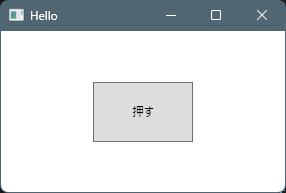
実行例
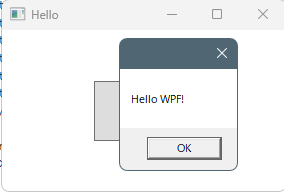
ボタンを押すとメッセージボックスが表示
2ペイン + 可変セパレータ(GridSplitter)
ファイル名:MainWindow.cs
using System.Windows;
using System.Windows.Media;
using System.Windows.Controls;

class MainWindow
{
    [STAThread]
    static void Main()
    {
        var grid = new Grid();
        grid.ColumnDefinitions.Add(
            new ColumnDefinition { Width = new GridLength(1, GridUnitType.Star)}
        );
        grid.ColumnDefinitions.Add(
            new ColumnDefinition { Width = GridLength.Auto}
        );
        grid.ColumnDefinitions.Add(
            new ColumnDefinition { Width = new GridLength(1, GridUnitType.Star)}
        );

        var textBlock = new TextBlock
        {
            Text = "左側",
        };
        Grid.SetColumn(textBlock, 0);
        grid.Children.Add(textBlock);

        var splitter = new GridSplitter
        {
            Width = 5,
            HorizontalAlignment = HorizontalAlignment.Center,
            VerticalAlignment = VerticalAlignment.Stretch,
            Background = Brushes.Gray,
            ShowsPreview = true,
            ResizeDirection = GridResizeDirection.Columns,
            Margin = new Thickness(2),
        };
        Grid.SetColumn(splitter, 1);
        grid.Children.Add(splitter);

        var button = new Button
        {
            Content = "右側",
            Margin = new Thickness(8),
        };
        Grid.SetColumn(button, 2);
        grid.Children.Add(button);

        var win = new Window
        {
            Title = "Hello",
            Width = 300,
            Height = 200,
        };
        win.Content = grid;

        var app = new Application();
        app.Run(win);
    }
}
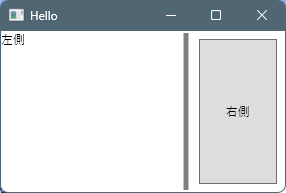
実行例
真ん中のツマミを左右に動かす
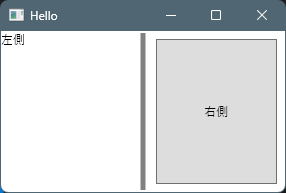
左右の領域の広さが変化
DockPanelのサンプル
ファイル名:MainWindow.cs
using System.Windows;
using System.Windows.Media;
using System.Windows.Controls;

class MainWindow
{
    [STAThread]
    static void Main()
    {

        var win = new Window
        {
            Title = "DockPanel No XAML Sample",
            Width = 600,
            Height = 400,
        };

        // DockPanel
        var dock = new DockPanel
        {
            LastChildFill = true
        };

        // 上
        var top = new Button
        {
            Content = "Top",
            Height = 40,
            Background = Brushes.LightGray
        };
        DockPanel.SetDock(top, Dock.Top);
        dock.Children.Add(top);

        // 下
        var bottom = new Button
        {
            Content = "Bottom",
            Height = 40,
            Background = Brushes.LightGray
        };
        DockPanel.SetDock(bottom, Dock.Bottom);
        dock.Children.Add(bottom);

        // 左
        var left = new Button
        {
            Content = "Left",
            Width = 80,
            Background = Brushes.LightBlue
        };
        DockPanel.SetDock(left, Dock.Left);
        dock.Children.Add(left);

        // 右
        var right = new Button
        {
            Content = "Right",
            Width = 80,
            Background = Brushes.LightBlue
        };
        DockPanel.SetDock(right, Dock.Right);
        dock.Children.Add(right);

        // 中央(LastChildFill = true)
        var center = new TextBlock
        {
            Text = "Center (LastChildFill)",
            FontSize = 20,
            HorizontalAlignment = HorizontalAlignment.Center,
            VerticalAlignment = VerticalAlignment.Center
        };
        dock.Children.Add(center);

        win.Content = dock;

        var app = new Application();
        app.Run(win);
    }
}
実行例
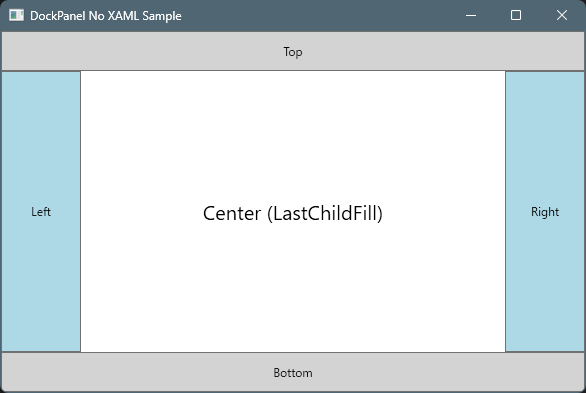
最後に定義したTextBlockがDockPanelの残りの領域一杯に広がります。

コメント