
Canvas上でマウスでお絵描きが出来ないか試作。
MainWindow.xaml.cs
using System.Windows;
using System.Windows.Input;
using System.Windows.Media;
using System.Windows.Shapes;

namespace WpfFreehandPath;

public partial class MainWindow : Window
{
    private bool isDrawing = false;

    private Path? currentPath;   // 現在のパスオブジェクト
    private PathFigure? currentFigure;   // Segmentで構成された図形を表すクラス
    private PathGeometry? currentGeometry;   // 円弧、曲線、楕円、線、および四角形で構成できる複雑な図形を表します。

    public MainWindow()
    {
        InitializeComponent();
    }
    // キャンバス上でマウスボタンを押下
    private void Canvas_MouseDown(object sender, MouseButtonEventArgs e)
    {
        // ドロー開始・フラグON
        isDrawing = true;

        // キャンバス上の座標を取得
        Point p = e.GetPosition(DrawingCanvas);

        // パスに最初のノードを追加
        currentFigure = new PathFigure
        {
            StartPoint = p,
            IsClosed = false    // 閉じていない図形
        };

        // パスの図形にノードを追加
        currentGeometry = new PathGeometry();
        currentGeometry.Figures.Add(currentFigure);

        // パスの情報(色など)を指定してオブジェクトを生成
        currentPath = new Path
        {
            Stroke = Brushes.Black,
            StrokeThickness = 2,
            Data = currentGeometry
        };

        // パスをキャンバスの子として追加。
        DrawingCanvas.Children.Add(currentPath);


        // マウスキャプチャを取得
        // ドラッグ中にカーソルがCanvas外に出ても
        // MouseMove / MouseUpイベントをこのCanvasが受け取れるようにする
        DrawingCanvas.CaptureMouse();
    }

    // マウスの移動(ドラック)
    private void Canvas_MouseMove(object sender, MouseEventArgs e)
    {
        // ドロー中で無ければ返る。
        if (!isDrawing) return;

        if (currentFigure is null) return;

        // キャンバス上の座標を取得
        Point p = e.GetPosition(DrawingCanvas);

        // セグメントを追加
        currentFigure.Segments.Add(
            // 直線セグメントを追加
            // 前のポイント → 現在のポイントまでの線を描画する
            new LineSegment(p, true)
        );
    }
    // キャンバス上でマウスボタンを解放
    private void Canvas_MouseUp(object sender, MouseButtonEventArgs e)
    {
        // ドロー終了・フラグOFF
        isDrawing = false;

        // マウスキャプチャを解放
        // これ以降は通常のマウスイベント処理に戻る
        DrawingCanvas.ReleaseMouseCapture();
    }
}

/*

Path / PathGeometry / PathFigure の関係

Path は WPF の 表示用コントロールで、線の色や太さなどの見た目を持ち、実際に画面へ描画される要素です。
PathGeometry は 図形データのコンテナで、複数の図形(PathFigure)をまとめて保持します。
PathFigure は **1つの連続した図形(ストローク)**を表し、開始点 StartPoint と複数の Segment で構成されます。
Segment(LineSegment など)は 点と点を結ぶ線や曲線の要素で、図形の形状を作ります。
つまり構造は Path → PathGeometry → PathFigure → Segment の階層になり、外側が表示、内側が図形データです。

*/
MainWindow.xaml
<Window x:Class="WpfFreehandPath.MainWindow"
        xmlns="http://schemas.microsoft.com/winfx/2006/xaml/presentation"
        xmlns:x="http://schemas.microsoft.com/winfx/2006/xaml"
        Title="Freehand Path" Height="450" Width="800">
    <Grid>
        <Canvas Name="DrawingCanvas"
                Background="White"
                MouseDown="Canvas_MouseDown"
                MouseMove="Canvas_MouseMove"
                MouseUp="Canvas_MouseUp"/>
    </Grid>
</Window>
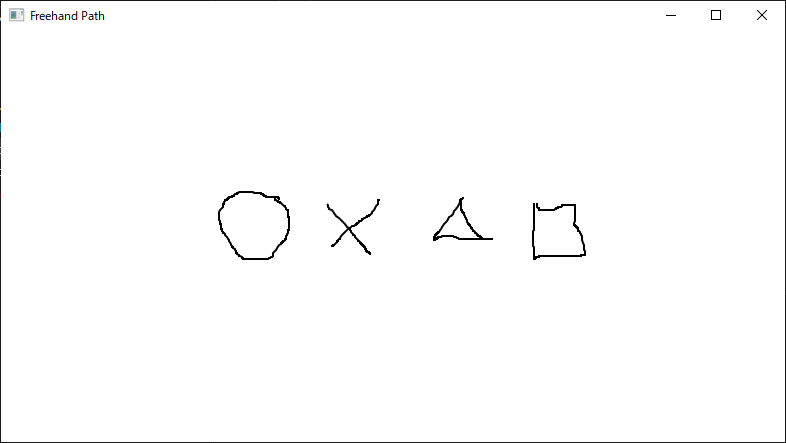
実行例:
Canvas上でマウスをドラックすると、線が描画される。

コメント