XAMLではデータバインディングが基本となり、ボタンを押した場合のアクションはコマンド(ICommand)とバインディングすることになります。
では、コマンドで何をしているかと言いますと、実際処理を行うメソッドの呼び出しが主な内容となります。
本格的にはICommandを実装したクラスが必要となりますが、メソッドを呼び出すだけの為にクラスを作るのは大仰かと思い、
簡易的なコードでコマンドを実現してみたいと思います。
サンプルコード
ファイル名:RoutedCommandSample.csproj
<Project Sdk="Microsoft.NET.Sdk">

  <PropertyGroup>
    <OutputType>WinExe</OutputType>
    <TargetFramework>net10.0-windows</TargetFramework>
    <Nullable>enable</Nullable>
    <ImplicitUsings>enable</ImplicitUsings>
    <UseWPF>true</UseWPF>
  </PropertyGroup>

</Project>
ファイル名:Helpers\RoutedCommandHelper.cs
using System.Windows;
using System.Windows.Input;

namespace RoutedCommandSample.Helpers;

public static class RoutedCommandHelper
{
    public static RoutedUICommand Create(
        Window window,
        string? name,
        Action execute,
        Func<bool>? canExecute = null,
        Key? key = null,
        ModifierKeys modifiers = ModifierKeys.None)
    {
        var cmd = name == null
            ? new RoutedUICommand()
            : new RoutedUICommand(name, name, window.GetType());

        ExecutedRoutedEventHandler exec = (_, __) =>
            execute();

        CanExecuteRoutedEventHandler can = (_, e) =>
            e.CanExecute = canExecute?.Invoke() ?? true;

        window.CommandBindings.Add(
            new CommandBinding(cmd, exec, can));

        if (key != null)
        {
            window.InputBindings.Add(
                new KeyBinding(cmd, key.Value, modifiers));
        }

        return cmd;
    }
}
RoutedUICommandオブジェクトを生成するファクトリメソッドです。
ファイル名:MainWindow.xaml.cs
using System.Windows;
using System.Windows.Input;
using RoutedCommandSample.Helpers;

namespace RoutedCommandSample;

public partial class MainWindow : Window
{
    public RoutedUICommand OpenCommand { get; private set; } = null!;
    public RoutedUICommand ExitCommand { get; private set; } = null!;

    bool _canOpen = true;

    public MainWindow()
    {
        InitializeComponent();

        OpenCommand = RoutedCommandHelper.Create(
            window: this,
            name: "Open",
            execute: OpenFile,
            canExecute: () => _canOpen,
            key: Key.O,
            modifiers: ModifierKeys.Control);

        ExitCommand = RoutedCommandHelper.Create(
            window: this,
            name: "Exit",
            execute: Close,
            key: Key.Q,
            modifiers: ModifierKeys.Control);

        DataContext = this;
    }

    void OpenFile()
    {
        MessageBox.Show("Open executed");

        // CanExecute の変化確認用
        _canOpen = false;
        CommandManager.InvalidateRequerySuggested();
    }
}
XAMLから呼び出せるコマンドOpenCommandと実際のメソッドOpenFile()をRoutedUICommandで紐づけを行います。
RoutedUICommandの生成は少し面倒なのでHelperとしてファクトリメソッドを作りました。
ファイル名:MainWindow.xaml
<Window
    x:Class="RoutedCommandSample.MainWindow"
    xmlns="http://schemas.microsoft.com/winfx/2006/xaml/presentation"
    xmlns:x="http://schemas.microsoft.com/winfx/2006/xaml"
    Title="RoutedCommand Sample"
    Width="400"
    Height="200">

    <DockPanel>

        <Menu DockPanel.Dock="Top">
            <MenuItem Header="File">
                <MenuItem Header="Open"
                          Command="{Binding OpenCommand}" />
                <MenuItem Header="Exit"
                          Command="{Binding ExitCommand}" />
            </MenuItem>
        </Menu>

        <StackPanel Margin="20" VerticalAlignment="Center">

            <Button
                Height="30"
                Margin="0,0,0,10"
                Content="Open (Ctrl+O)"
                Command="{Binding OpenCommand}" />

            <Button
                Height="30"
                Content="Exit (Ctrl+Q)"
                Command="{Binding ExitCommand}" />

        </StackPanel>

    </DockPanel>
</Window>
メニューとボタンで同じコマンドにバインディングしています。
実行例
スクリーンショット
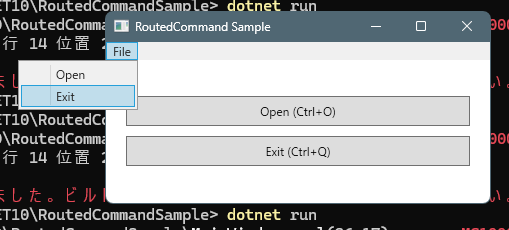
RoutedUICommandはマイクロソフトが用意してくれているICommandの実装になります。
サンプルコードの通り、XAMLのボタンやメニューとバインドし機能することが確認出来ました。
ボタンやメニューを押すアクションとのバインドの他にショートカットキーとのバインドも同時に行うことが出来ます。
コメント